Page 1 of 1
Access Practical Exam Access Practical Exam 1. (2) Open the "Access Practical your name.accdb" database. 2. (14) Create
Posted: Sun May 15, 2022 9:57 am
by answerhappygod
- Access Practical Exam Access Practical Exam 1 2 Open The Access Practical Your Name Accdb Database 2 14 Create 1 (150.56 KiB) Viewed 51 times
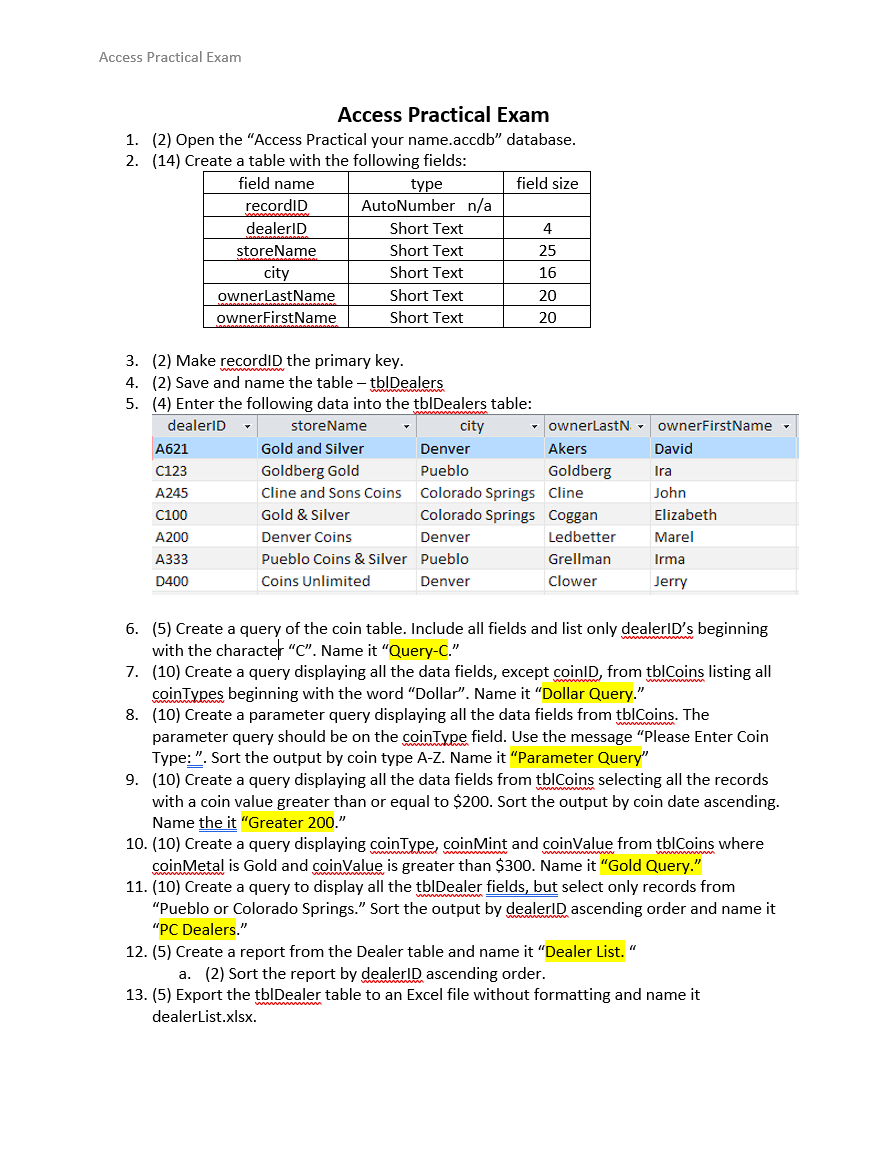
Access Practical Exam Access Practical Exam 1. (2) Open the "Access Practical your name.accdb" database. 2. (14) Create a table with the following fields: field name type field size recordID AutoNumber n/a dealerID Short Text 4 storeName Short Text 25 city Short Text 16 ownerLast Name Short Text 20 ownerFirstName Short Text 20 3. (2) Make recorded the primary key. 4. (2) Save and name the table - tblDealers 5. (4) Enter the following data into the tblDealers table: dealerID storeName city ownerLastN A621 Gold and Silver Denver Akers C123 Goldberg Gold Pueblo Goldberg A245 Cline and Sons Coins Colorado Springs Cline C100 Gold & Silver Colorado Springs Coggan A200 Denver Coins Denver Ledbetter A333 Pueblo Coins & Silver Pueblo Grellman D400 Coins Unlimited Denver Clower ownerFirstName David Ira John Elizabeth Marel Irma Jerry 6. (5) Create a query of the coin table. Include all fields and list only dealerlD's beginning with the character "C". Name it "Query-C." 7. (10) Create a query displaying all the data fields, except coinID, from tblCoins listing all coinTypes beginning with the word "Dollar". Name it "Dollar Query." 8. (10) Create a parameter query displaying all the data fields from tblCoins. The parameter query should be on the coin Type field. Use the message "Please Enter Coin Type: ". Sort the output by coin type A-Z. Name it "Parameter Query" 9. (10) Create a query displaying all the data fields from tblCoins selecting all the records with a coin value greater than or equal to $200. Sort the output by coin date ascending. Name the it "Greater 200." 10. (10) Create a query displaying coinType, coinMint and coinValue from tblCoins where coinMetal is Gold and coinValue is greater than $300. Name it "Gold Query." 11. (10) Create a query to display all the tblDealer fields, but select only records from "Pueblo or Colorado Springs." Sort the output by dealerID ascending order and name it "PC Dealers." 12. (5) Create a report from the Dealer table and name it "Dealer List." a. (2) Sort the report by dealerID ascending order. 13. (5) Export the tblDealer table to an Excel file without formatting and name it dealerlist.xlsx.
Access Practical Exam 14. (5) Modify your report named “Dealer List” and add your name to the end of the report title as in “Dealer List - your name." 15. (5) Export the tblCoin table to a text file and name it coinlist.txt. Set the delimiter to a comma. 16. (15) Create a query from tblCoins displaying all fields. Add a field at the end of the query to calculate a new field named "Bargain Price". The "Bargain Price" is equal to the coins value minus 20 percent. Name it "Bargain price." 17. (5) Create a query joining the two tables by the dealerID. a. (2) Add the following fields: storeName, coinDate, coinMint and coinValue. b. (2) Sort the report ascending by storeName. C. (2) Name it "Joined Dealer Coins." 18. (5) Create a query joining the two tables by the dealerID. a. (2) Add the following fields: storeName, coinDate, coinMint and coinValue. b. (2) Sort the report ascending by storeName. C. (2) Query coinMetal types "silver" and value greater than $100. d. (2) Name it "Silver Coins"